How to use Setwise
Setwise remembers every song your church sings: how often, how recently, in what key, and who led it. Then it helps you plan balanced sets. This guide walks through each screen. The screenshots use a made-up church, so the names are invented.
Numbers on a screenshot match the notes under it. Tap a screenshot to see it full size.
1Signing up and creating your workspace
Go to setwise.church and type your email. We send you a sign-in link, so there’s no password to remember. Tap the link in the email on any phone or computer.
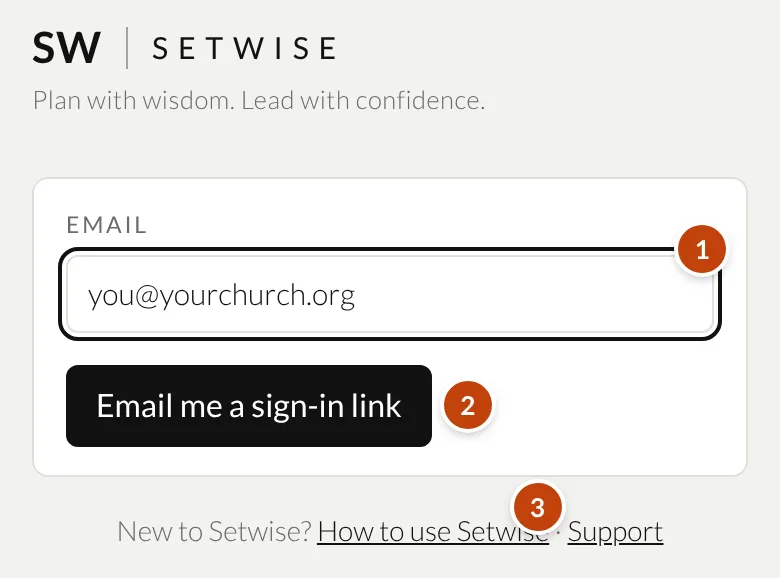
- Your email address.
- Tap to get your sign-in link.
- This guide and Support, any time.
The first time in, give your church or campus a name. Each campus gets its own private workspace.
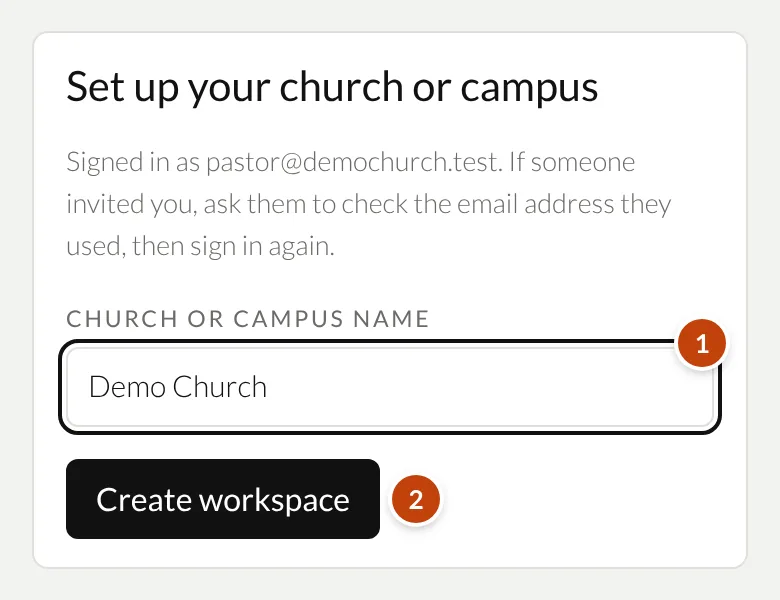
- Your church or campus name.
- Create your workspace.
A short setup guide opens. Every step has a Continue button, and you can leave and pick up where you left off from Settings.
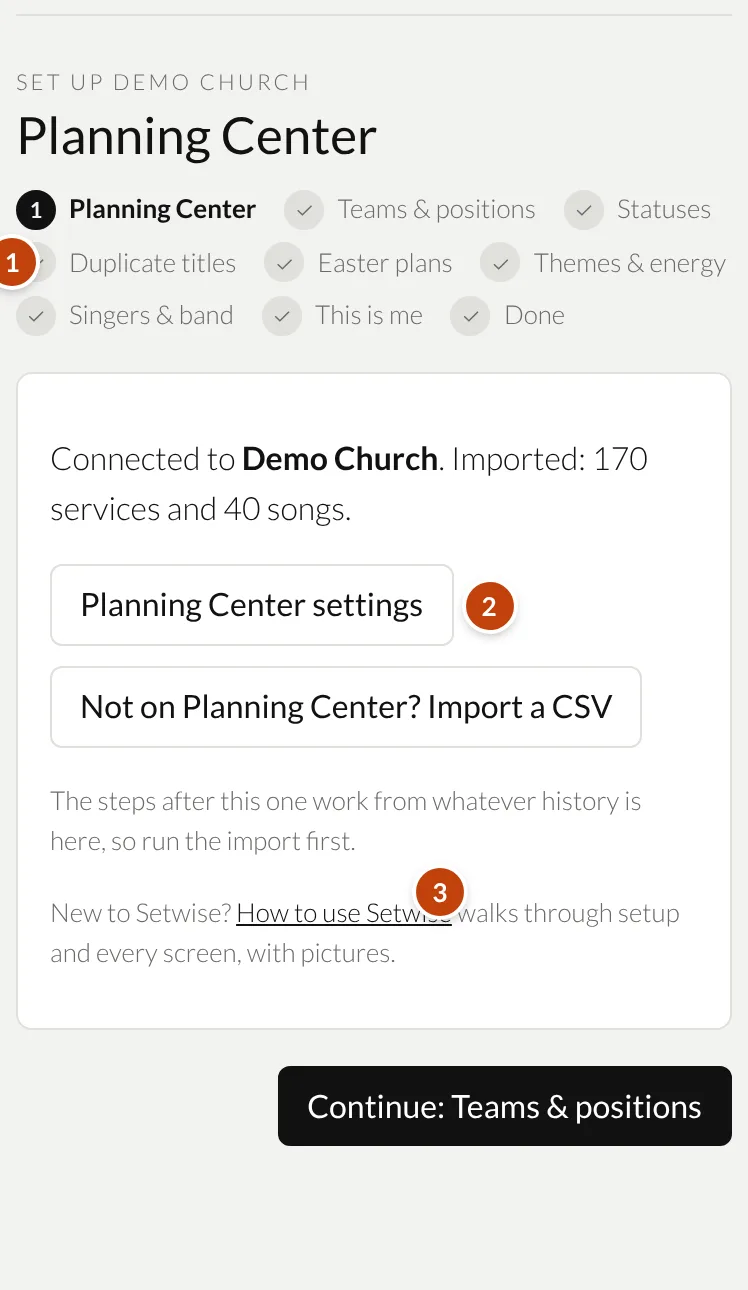
- The setup steps. Finished ones get a check mark.
- Start by connecting Planning Center.
- A link back to this guide.
Want your team in Setwise too? Invite them from Settings (see section 12).
2Connecting Planning Center
Tap Connect Planning Center, sign in to Planning Center, and approve. Setwise only reads your Services plans. It never changes anything in Planning Center.
Then tell Setwise which service types belong to this campus:
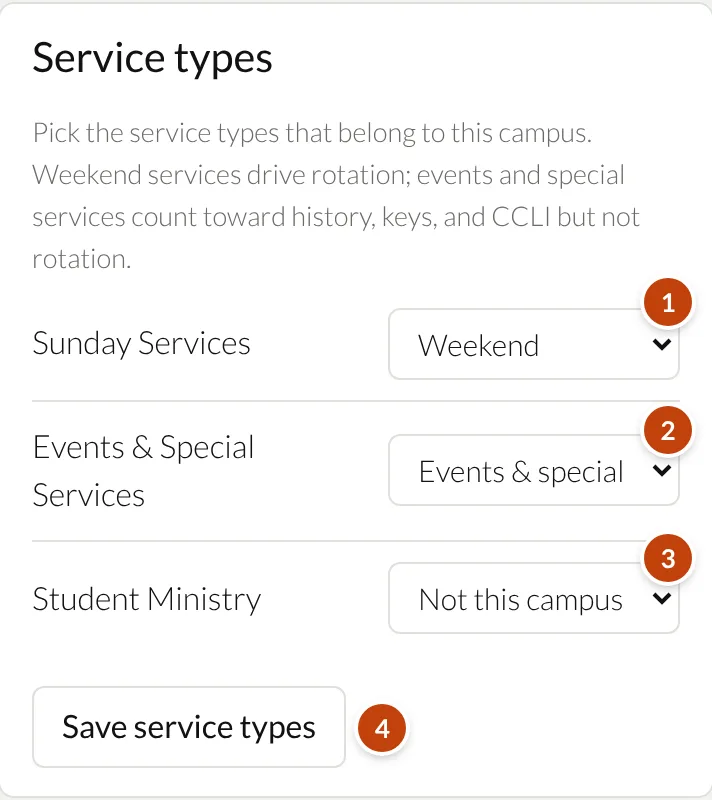
- Weekend: your regular Sunday services. These drive rotation: how often songs come around and what’s overdue.
- Events & special: worship nights, Christmas Eve, Good Friday. They count toward song history, keys and CCLI, but not rotation.
- Not this campus: left out.
- Save.
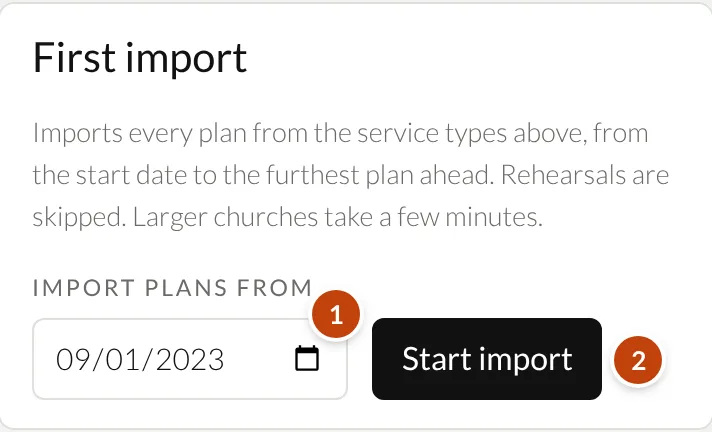
- How far back to import. A year or two is plenty.
- Start the import. Keep the page open until it finishes.
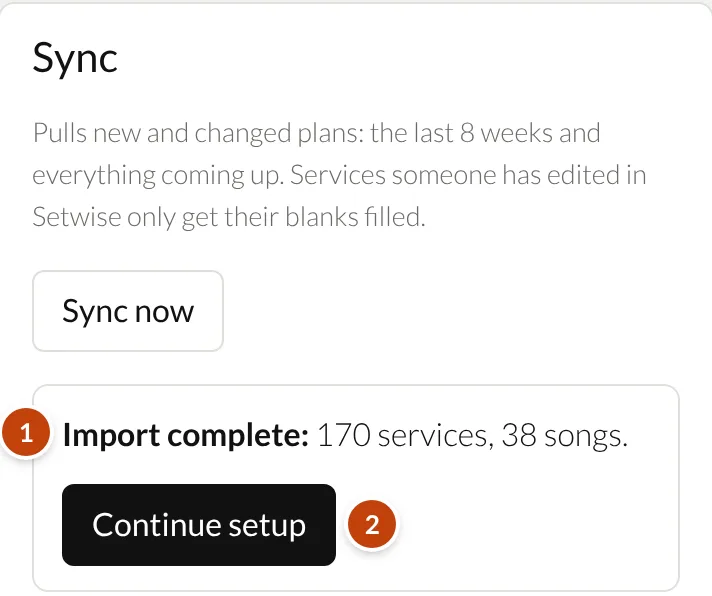
- What came in.
- Carry on with setup.
After that, Setwise checks Planning Center once a week by itself, or tap Sync now. Anything you change in Setwise stays as you left it; a sync only fills in blanks.
Not on Planning Center? Use Import & backup to bring in a spreadsheet instead (see section 11).
3Mapping teams and positions
Every church names its Planning Center positions differently. This step lists each team and position on your plans with Setwise’s best guess at what it is. Fix any that are wrong, then save.
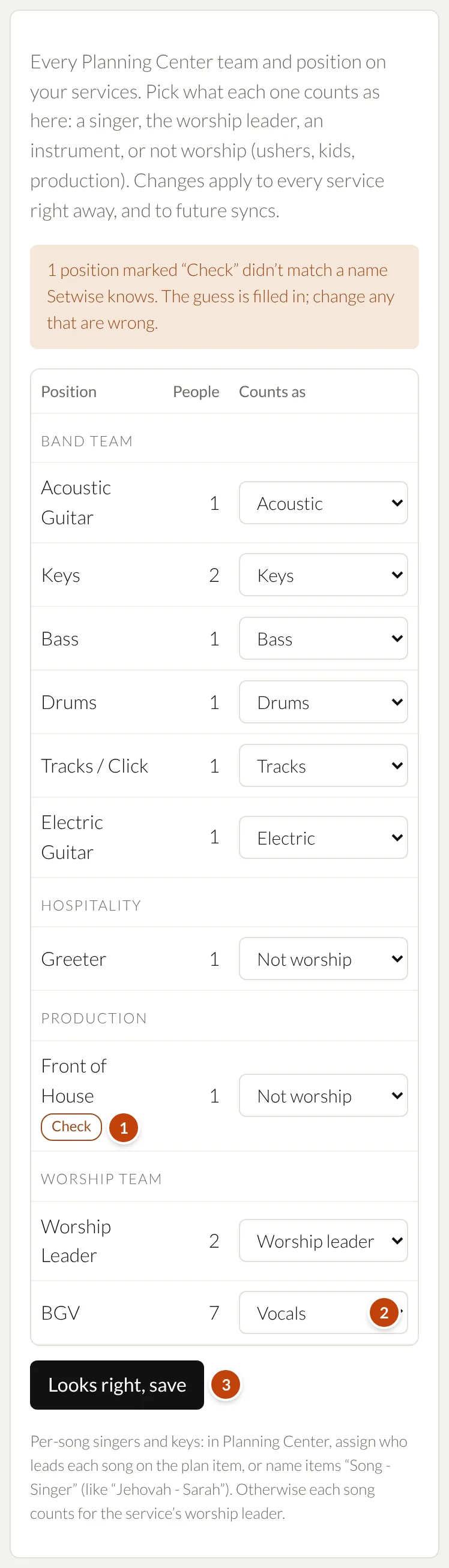
- Check means Setwise wasn’t sure. Take a look at it.
- What the position counts as: Vocals, Worship leader, an instrument, or Not worship (ushers, greeters, production, kids).
- Save. Every service updates right away.
You can change these any time in Settings → Planning Center → Teams & positions.
4Tagging singers and band, and “This is me”
Tag each singer once. Setwise uses it to work out the male and female key for every song, and who can lead the response.
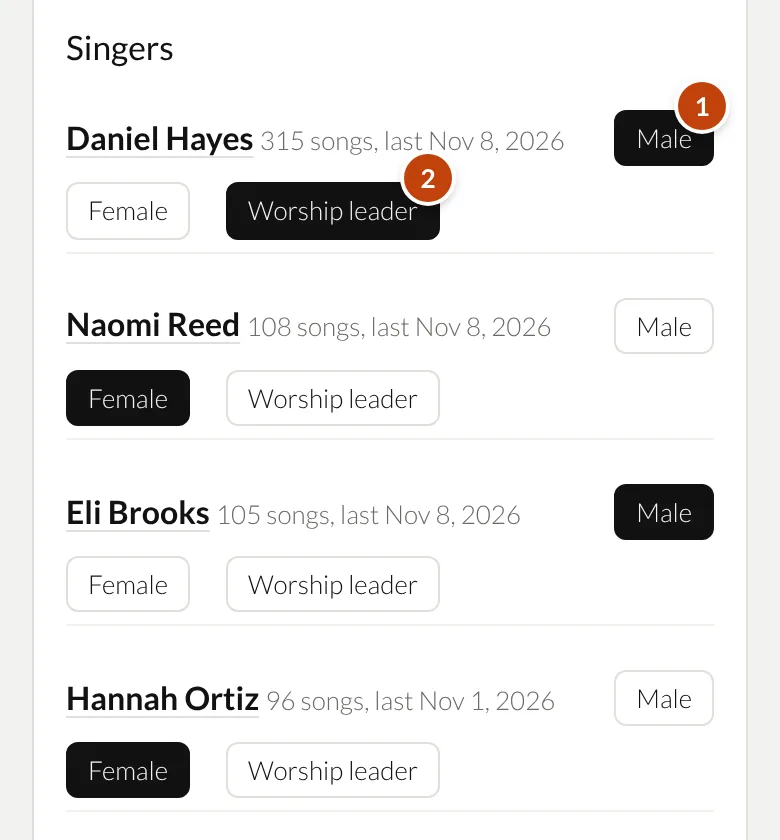
- Male or Female. Songs pick up male and female keys from who sang them.
- Worship leader. The planning assistant lets worship leaders take the last song.
Band instruments start from Planning Center. Tap to add or remove any.
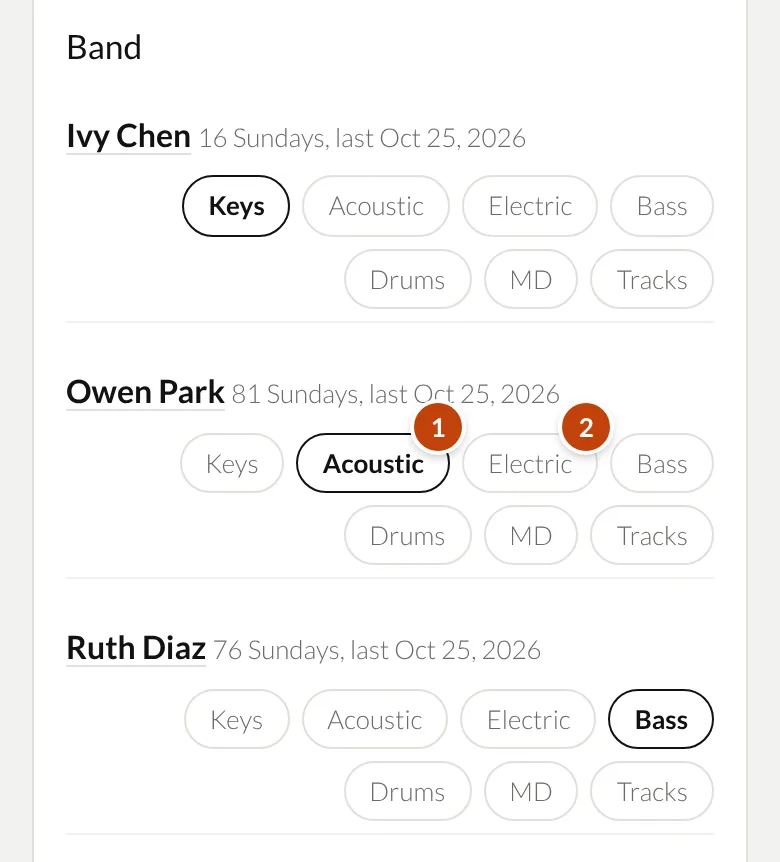
- Dark means they play it.
- Tap to add an instrument they also play.
Last, pick your own name with This is me, so Setwise doesn’t flag you in your own team check-ins.
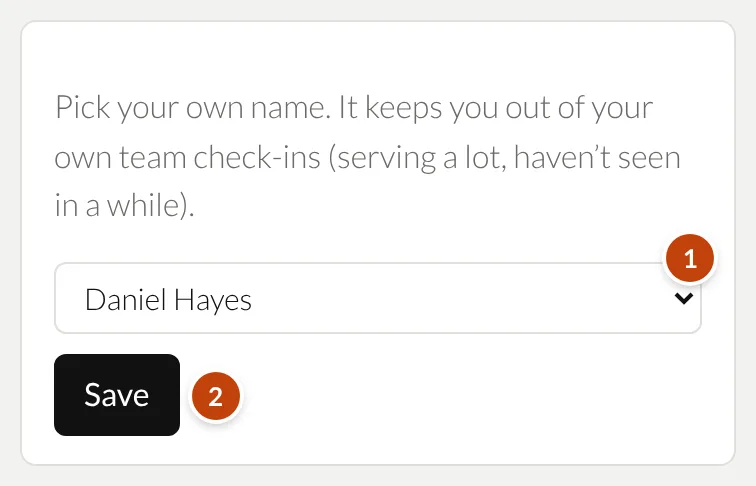
- Your name.
- Save.
5Home
Home is your weekly dashboard. It opens with a verse for the day, the same for everyone.
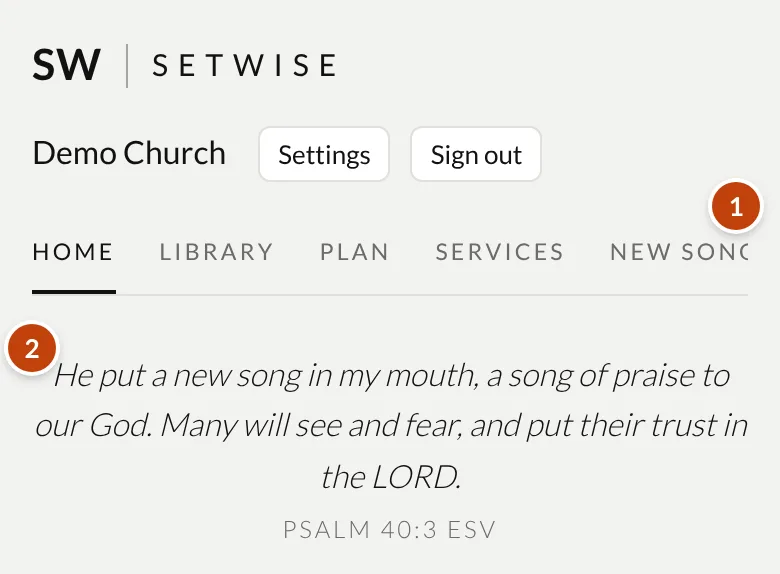
- The tabs. Swipe sideways for more on a phone.
- Today’s verse.
Next up
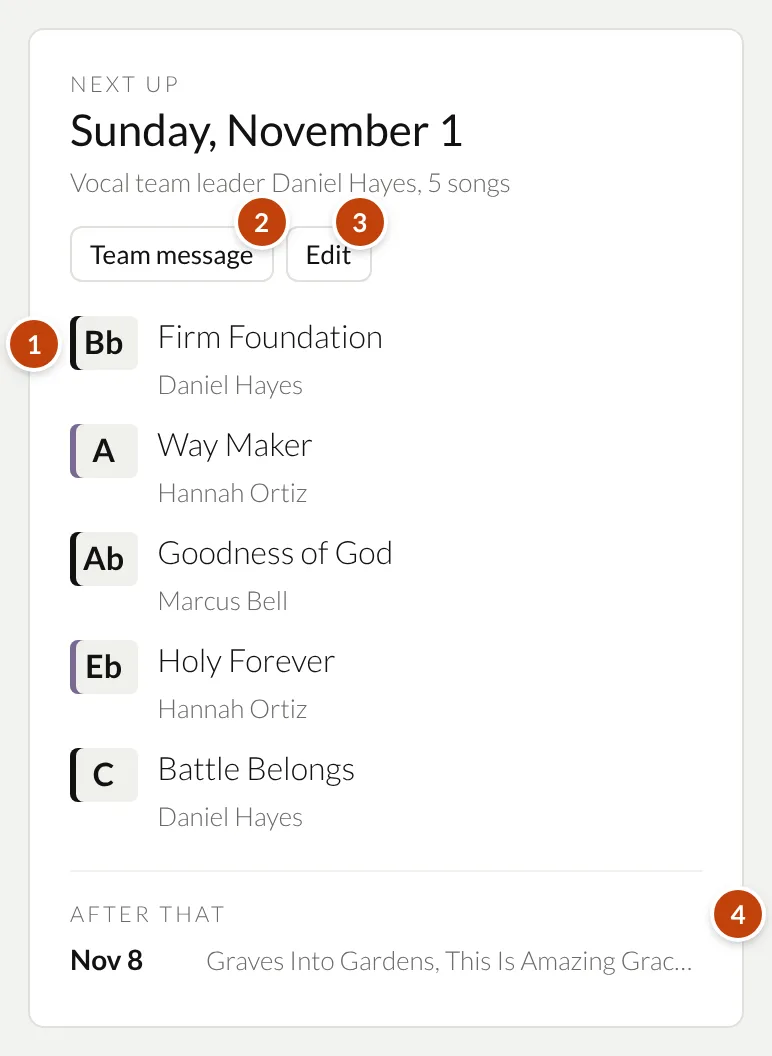
- Each song’s key. A dark left edge means a male lead, purple means female, both means a duet.
- A summary to send your team.
- Change the songs, keys, or team.
- Later services that are already planned.
Last Sunday
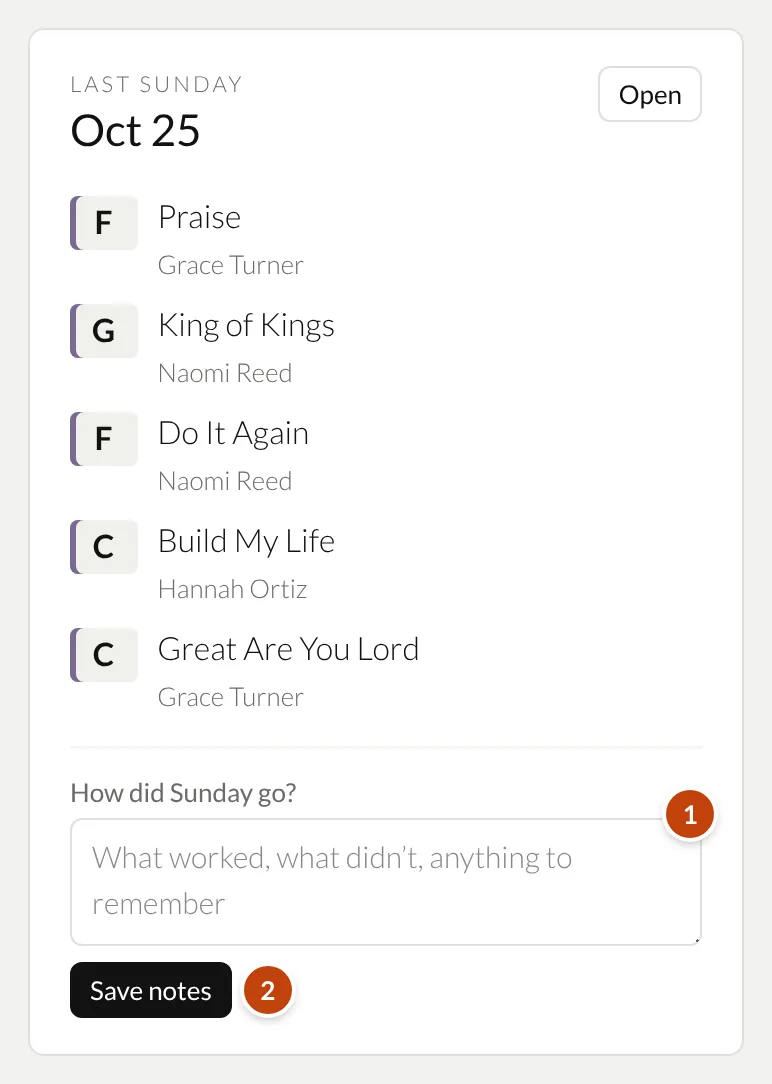
- A quick note on how it went. Future you will thank you.
- Save your notes.
Needs attention
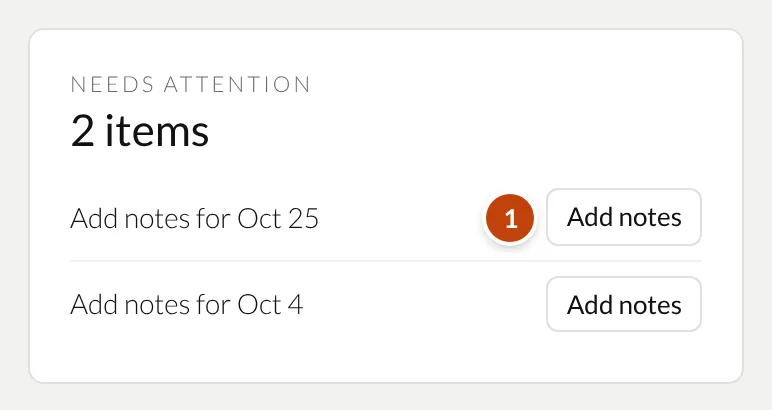
- Services from the last month without notes, and new songs waiting for a note on how they landed.
Your team
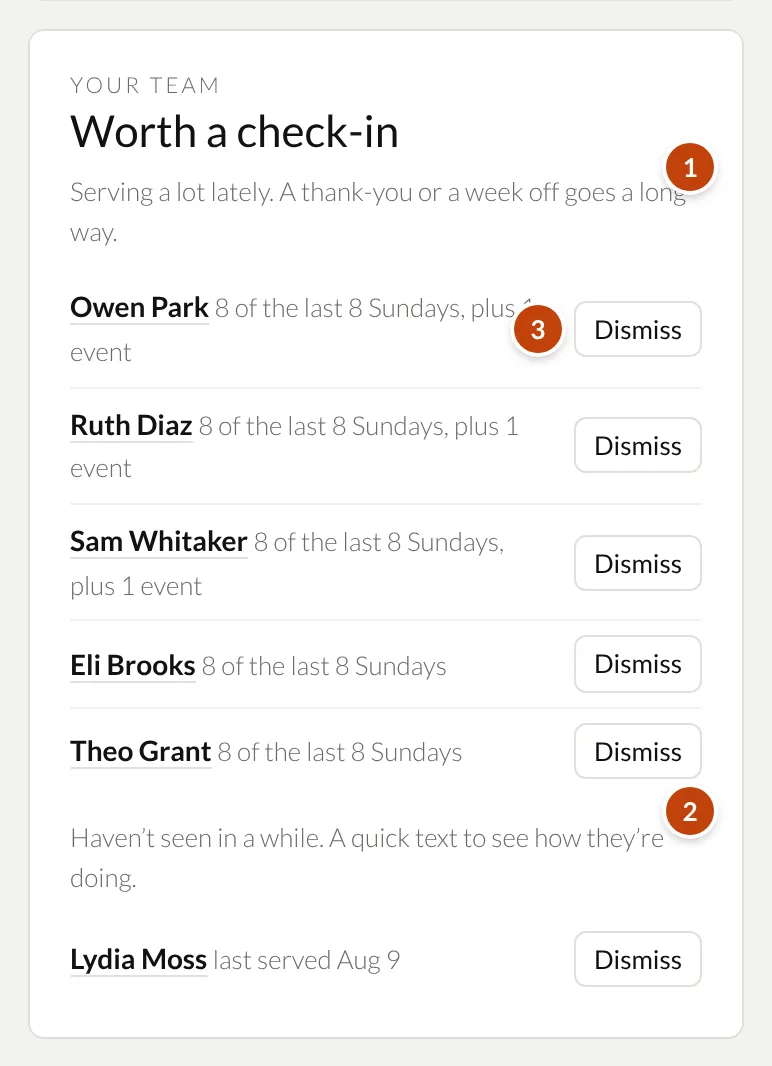
- Serving a lot: on the team 6 or more times in the last 8 weeks, counting events. Same rule as Team care.
- Haven’t seen in a while: a regular who hasn’t served in 6 weeks or more.
- Dismiss hides someone for 4 weeks.
Home shows up to 5 people in each group. The full list is in Team check.
The line at the bottom counts your repertoire, songs you’re trying out, Sundays logged, and all songs.

6Library and song pages
Every song your church sings, with its status, keys, and when it was last played.
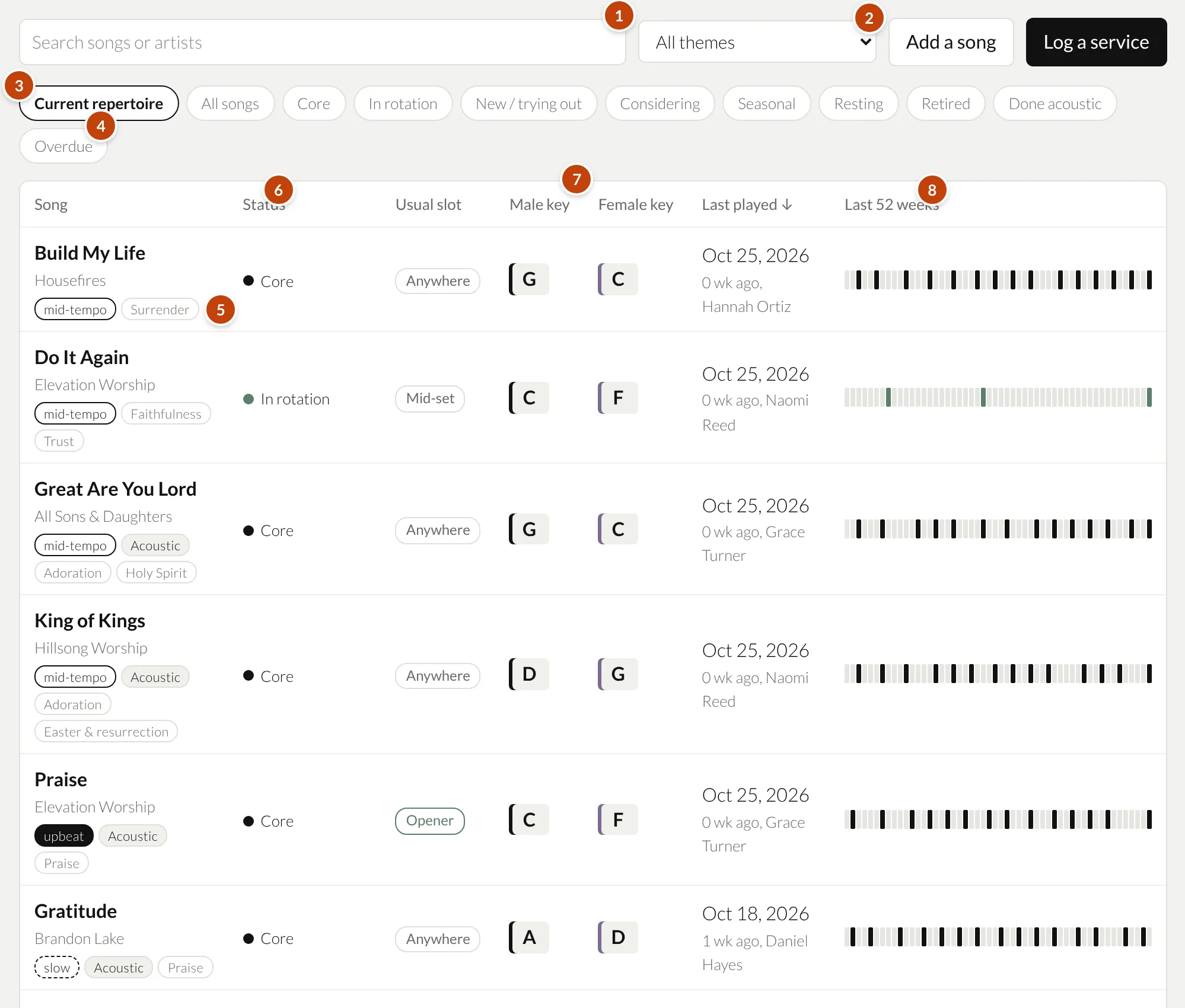
- Search by title or artist.
- Show songs with one theme.
- Filters: current repertoire, each status, songs done acoustic.
- Overdue: core songs not played in 8+ weeks, rotation songs in 4+ months.
- Energy (solid = upbeat, outlined = mid-tempo, dashed = slow), acoustic, and themes.
- Status. Tap a column title to sort.
- Male and female keys.
- The last 52 weeks. Each bar is a Sunday it was sung.
Statuses
- Core: your most-sung songs, about every 6 weeks.
- In rotation: about every 12 weeks.
- New / trying out: songs you’re teaching (see section 9).
- Considering: songs you might introduce.
- Seasonal: Christmas songs. Suggested only from Nov 27 to Dec 31.
- Resting and Retired: songs you’re not singing for now, or for good.
During setup, Setwise suggests a status for every song from your history. Untick any you want to keep as they are, then apply.
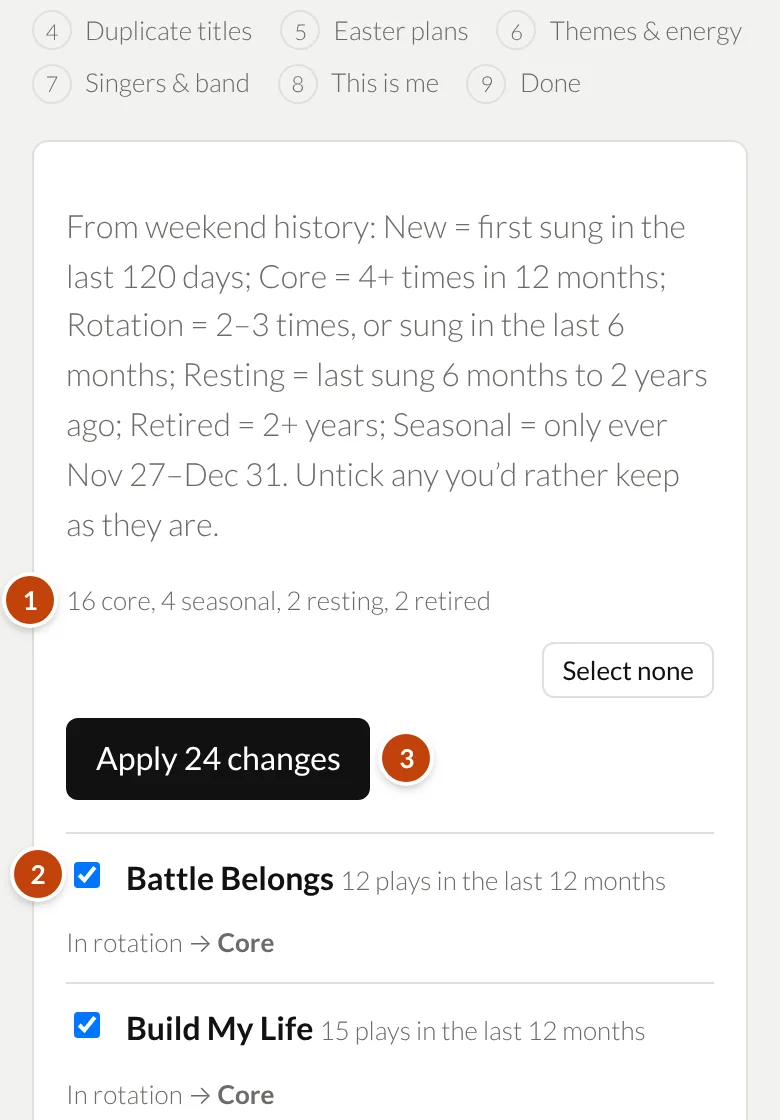
- How many songs would change.
- Untick to leave a song as it is.
- Apply the changes.
It also suggests themes and an energy for each song from its title and tempo. Edit anything, untick what you don’t want, then accept.
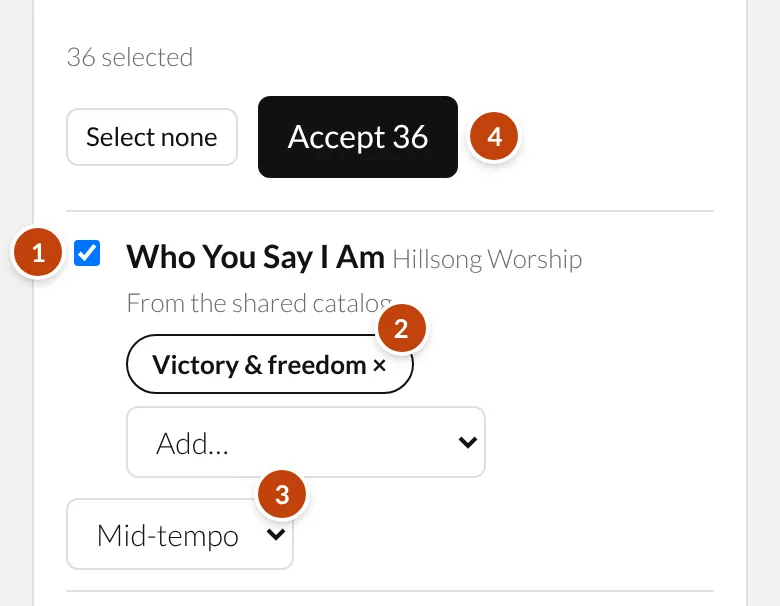
- Untick to skip a song.
- A suggested theme. Tap × to remove it.
- Energy: upbeat, mid-tempo, or slow.
- Accept.
A song’s page
Tap any song title to see its story.
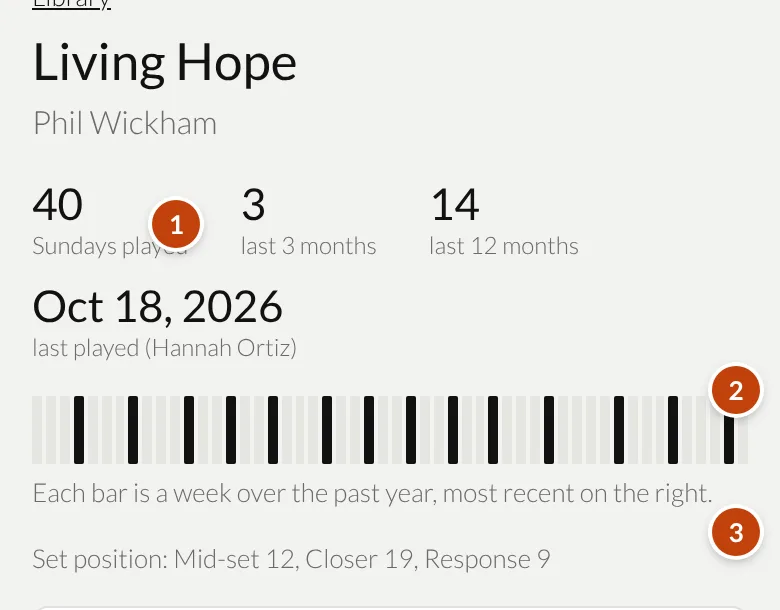
- How often it’s been sung.
- The last year, week by week.
- Where it usually sits in a set.
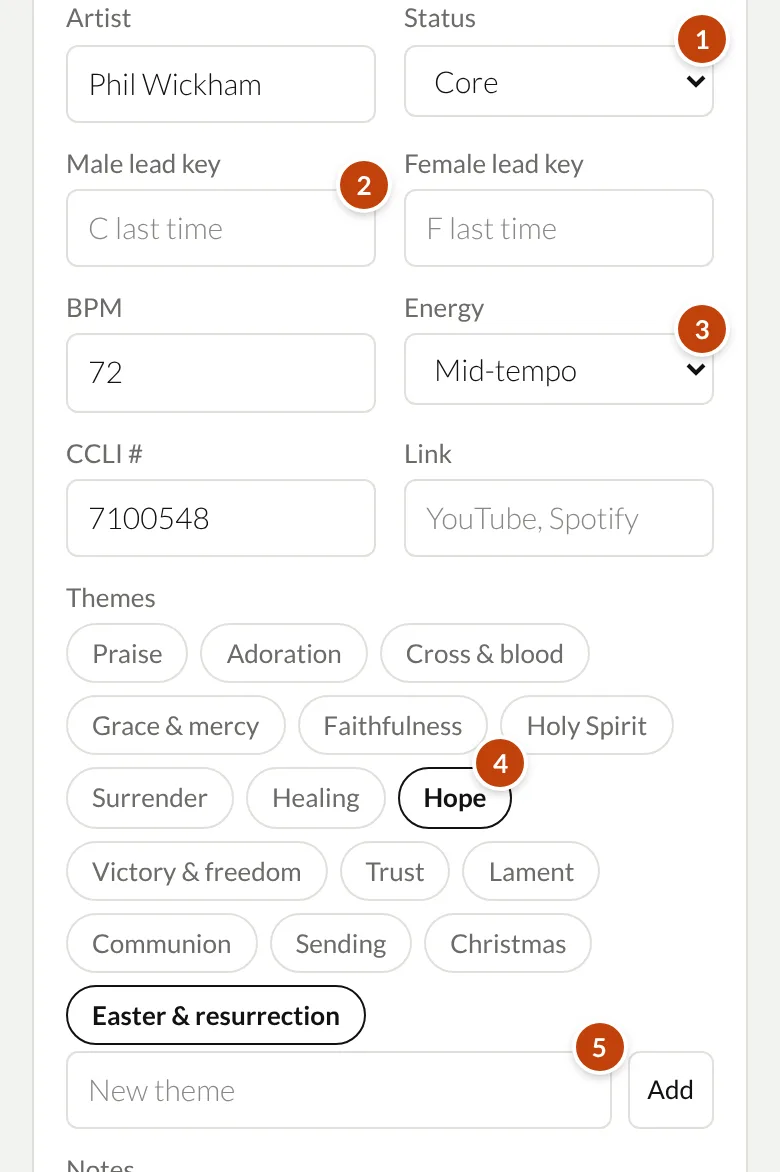
- Status.
- Male and female keys. Leave blank to use the key from the last time a man (or woman) sang it.
- Energy.
- Themes. Tap to turn one on or off.
- Add your own theme.
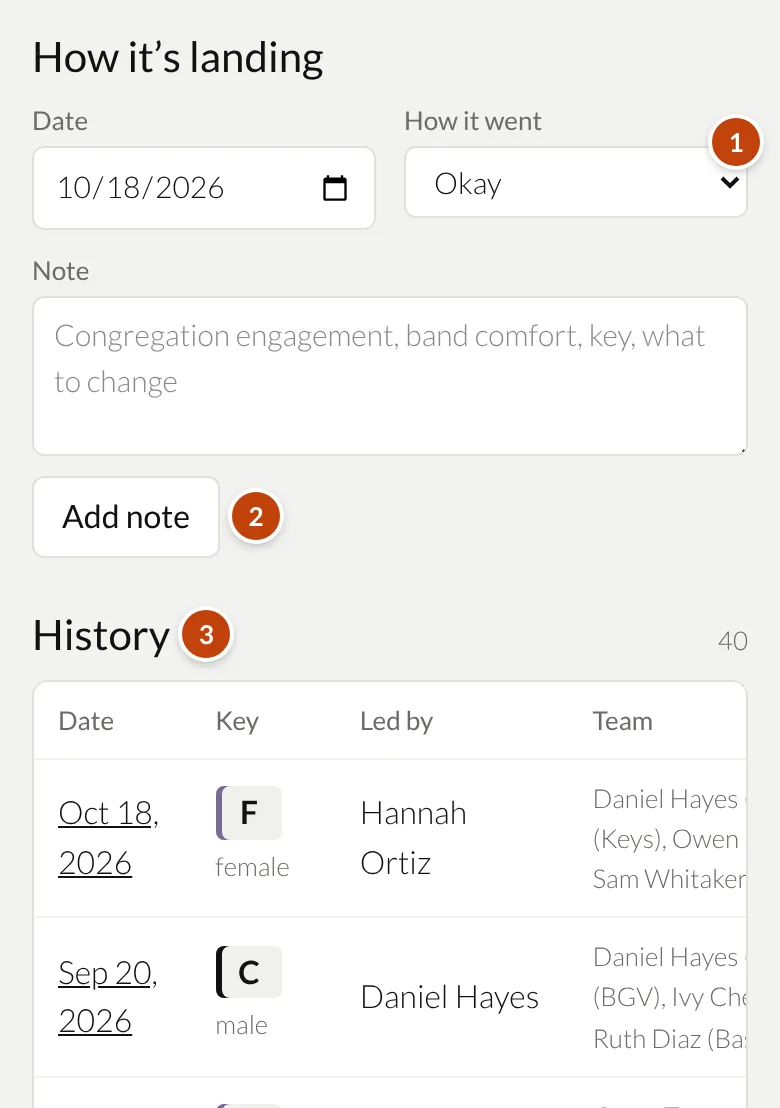
- How it went: Landed, Okay, or Rough.
- Save the note.
- Every time it was sung: date, key, who led it, and the team.
7Planning a set
The planning assistant suggests a balanced set for your next service: songs that are due, in keys that flow, matched to your singers. Change anything you like.
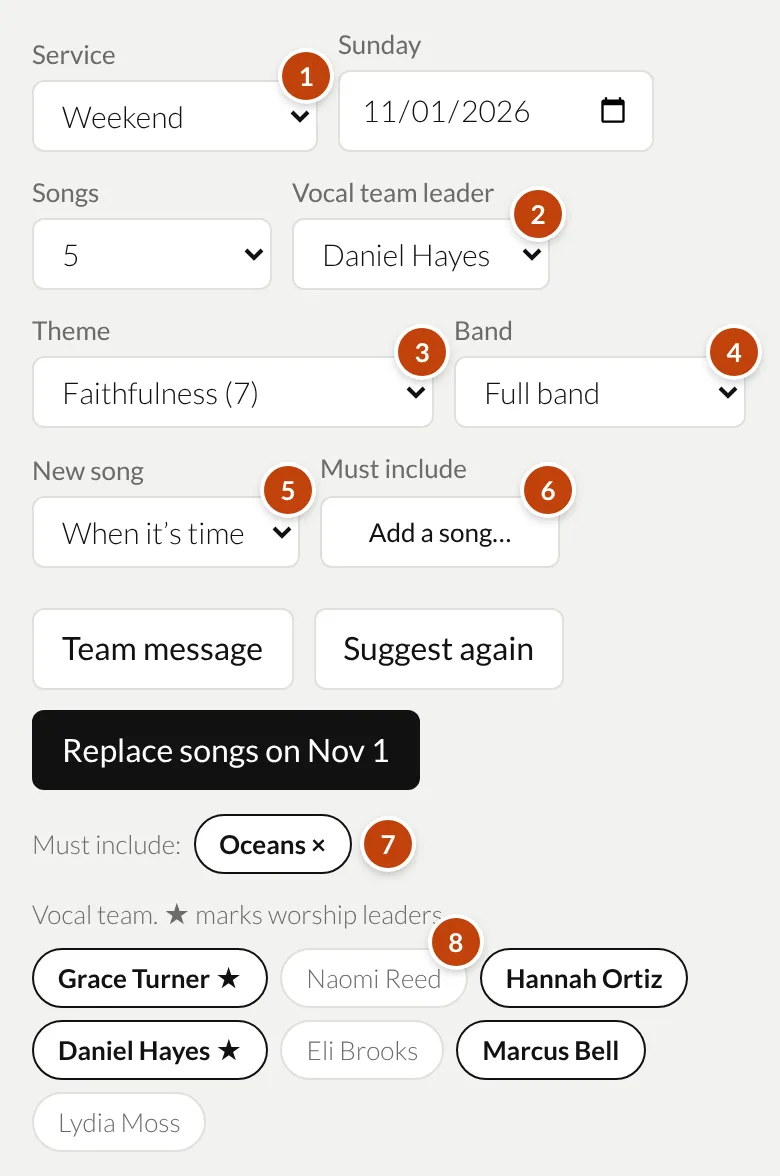
- Weekend or Event or special, and the date.
- Your vocal team leader. They get the last song.
- A theme for the message, if you have one.
- Full band or Acoustic service (only songs you’ve done acoustic).
- A new song: when it’s time, include one, or not this week.
- Must include: pick songs that have to be in the set. Setwise puts each one where it fits best.
- Your must-include songs. Tap one to remove it.
- Your vocal team. ★ marks worship leaders.
Each song in the set shows why it was picked and how its key moves into the next one.
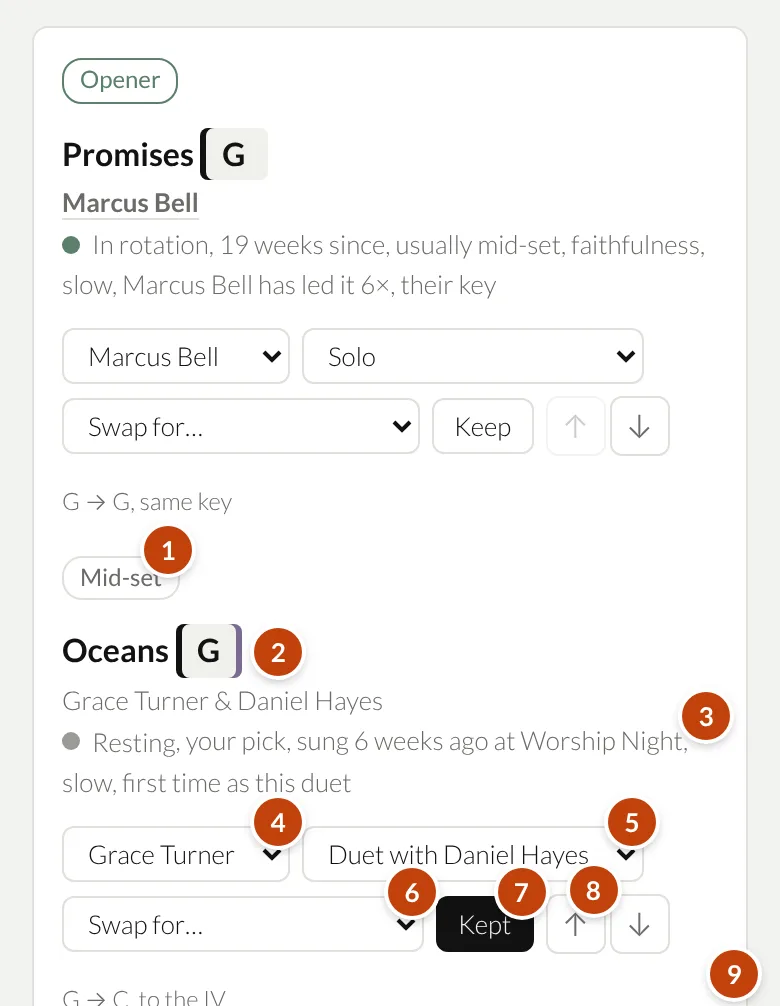
- Where it sits: opener, mid-set, closer, or response.
- The key for this singer.
- Why it was picked: how long since it was sung, its usual spot, the theme, and the singer’s history with it.
- Who sings it.
- Make it a duet.
- Swap for another song.
- Keep it, so Suggest again leaves it alone.
- Move it up or down.
- How the key moves into the next song. Awkward jumps show in orange.
Need a particular song? At the bottom of Swap for…, choose Choose any song… to search your whole library, even songs sung lately, resting, retired, or still being considered.
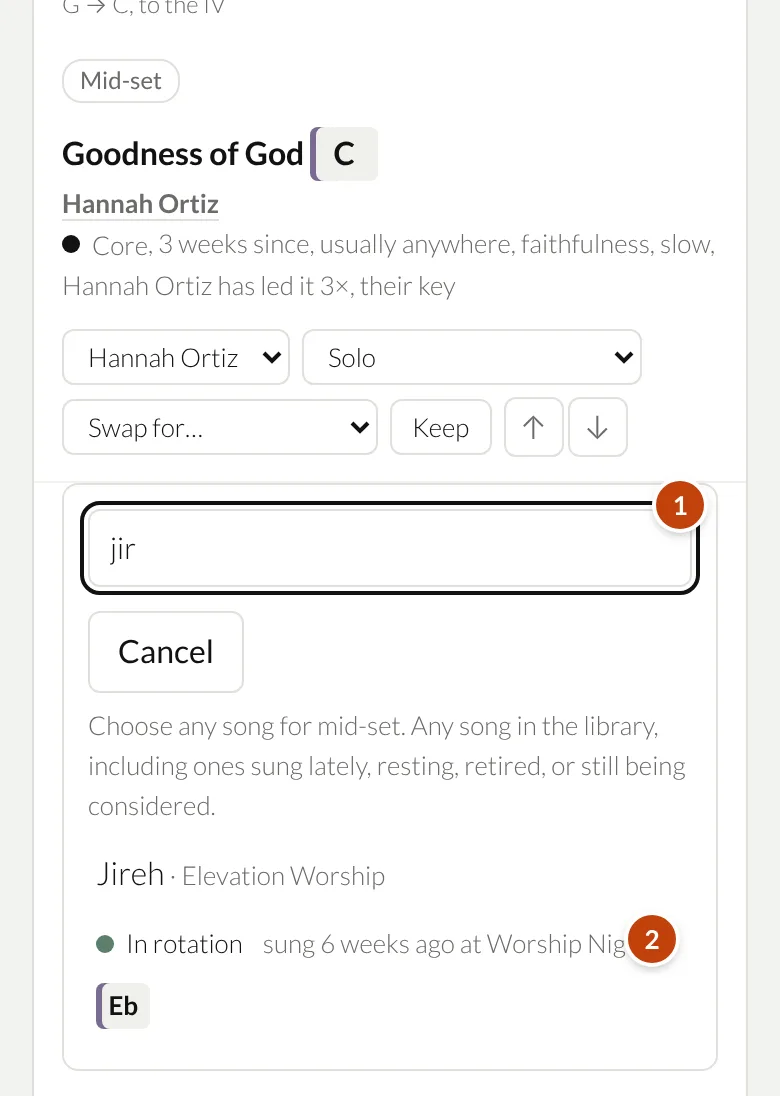
- Type part of a title or artist.
- Each result shows its status, when it was last sung, and its key for this singer.
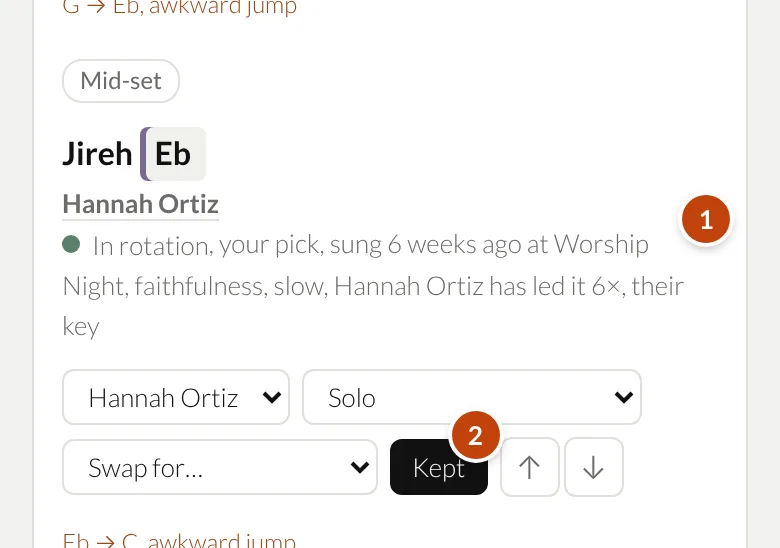
- It says your pick, so it’s clear Setwise didn’t choose it.
- Your picks are kept. Suggest again builds the rest of the set around them.
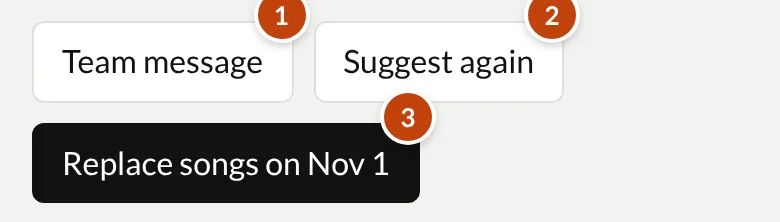
- A summary to send your team.
- Try a different set. Kept songs and hand-picked singers stay.
- Save it as a service (or replace the songs on one that’s already there).
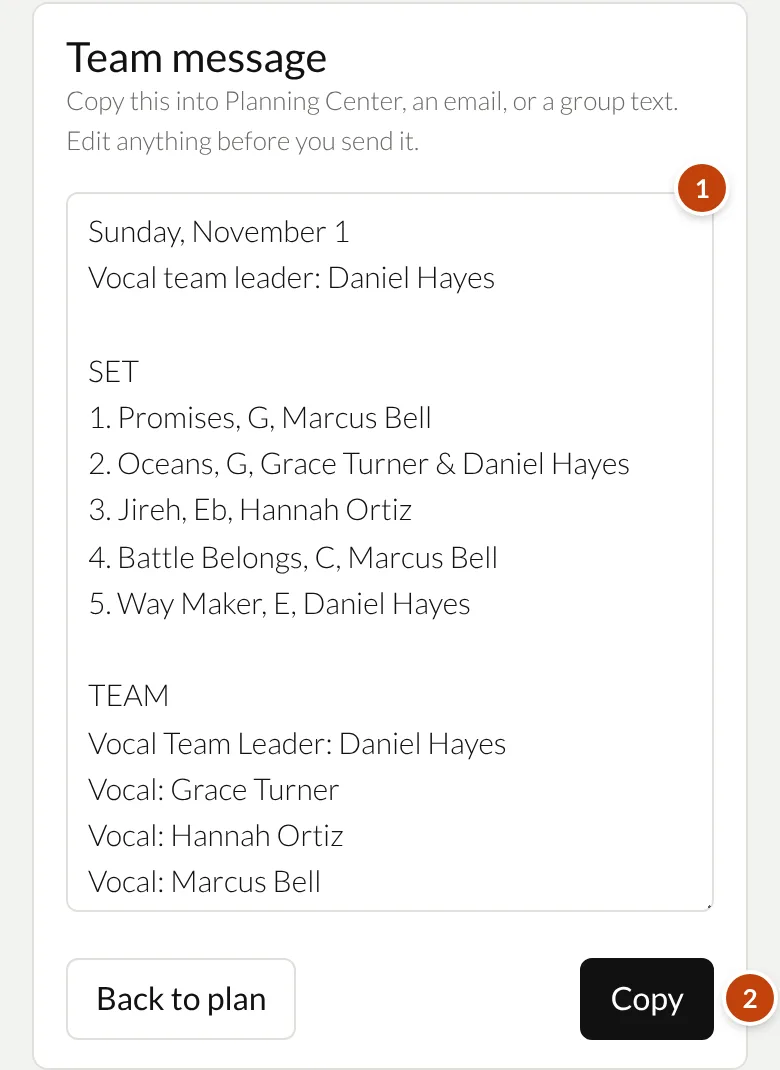
- Edit anything before you send it.
- Copy it into a text, an email, or Planning Center.
8Services
Every service, newest first. Upcoming ones come from Planning Center or from plans you’ve saved.
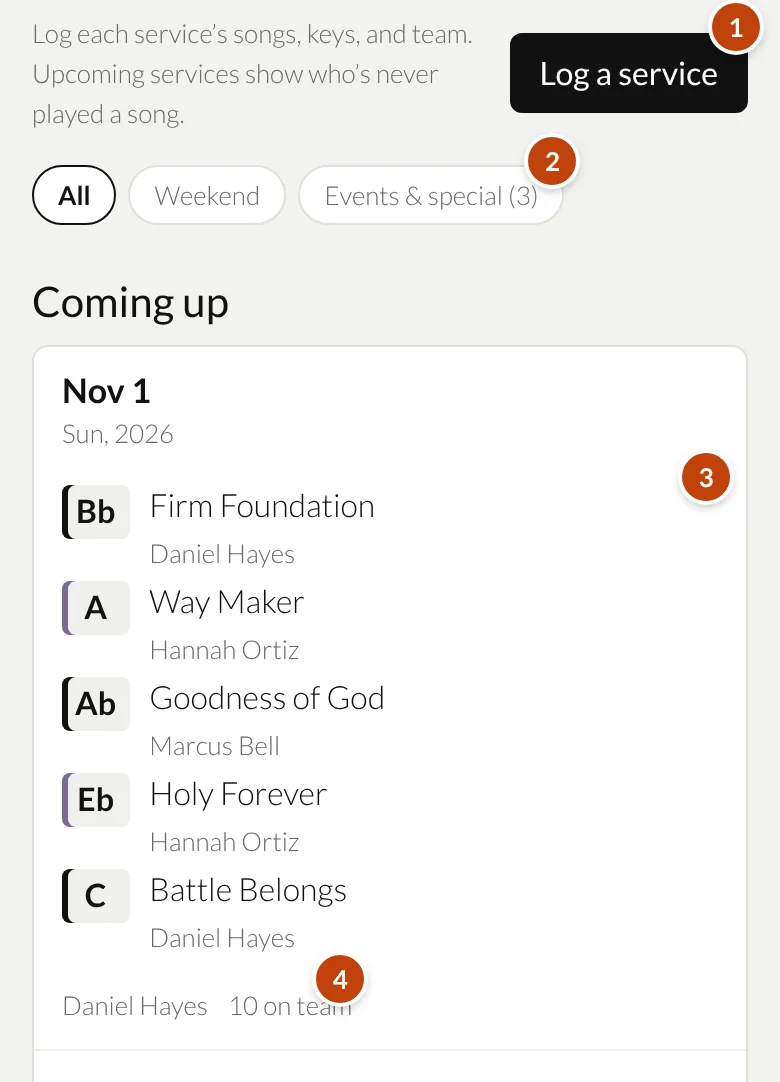
- Log a service by hand.
- Show weekends, or events and specials.
- The set, with keys and who sang.
- The team.
Tap a service to change it.
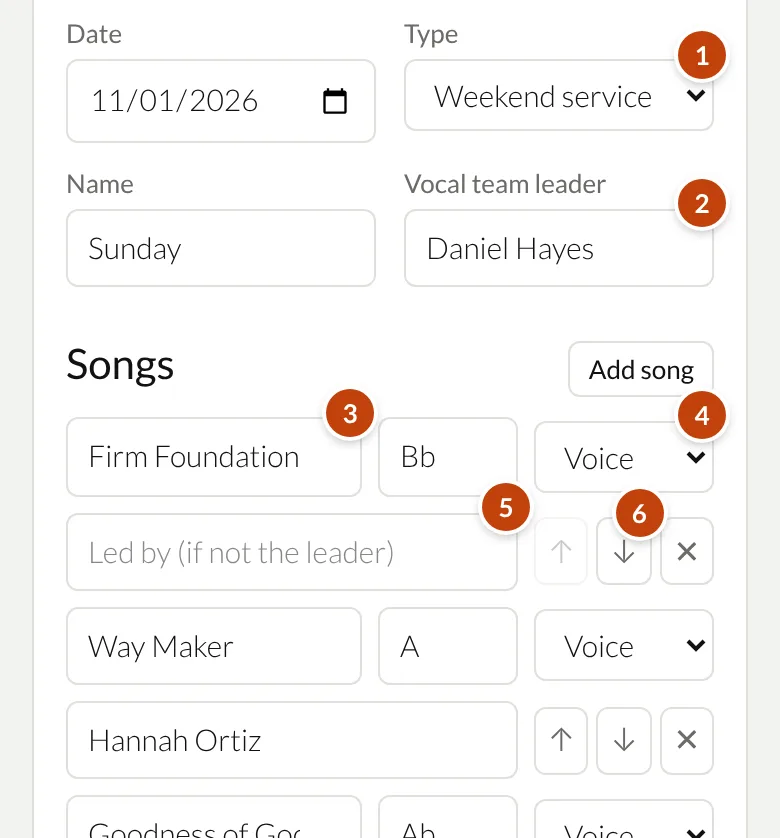
- Weekend service or a special (give specials a name, like “Worship Night”).
- Vocal team leader.
- Song title. Start typing to pick from your library.
- Who sang it: male, female, or duet.
- Who led it, if not the vocal team leader.
- Move a song up or down, or remove it.
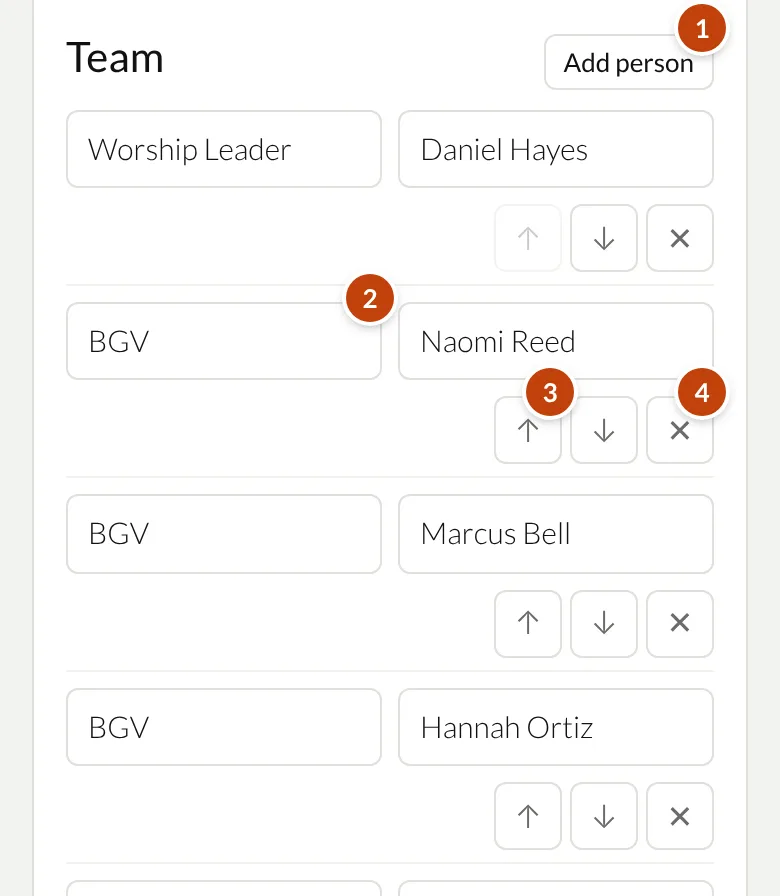
- Add someone.
- Their role, like Keys or Vocal.
- Move them up or down the list.
- Remove them.
Special services (worship nights, Christmas Eve, Good Friday) count toward each song’s history, keys, and CCLI, but not toward rotation, so a big worship night doesn’t make your Sunday favorites look overdue.
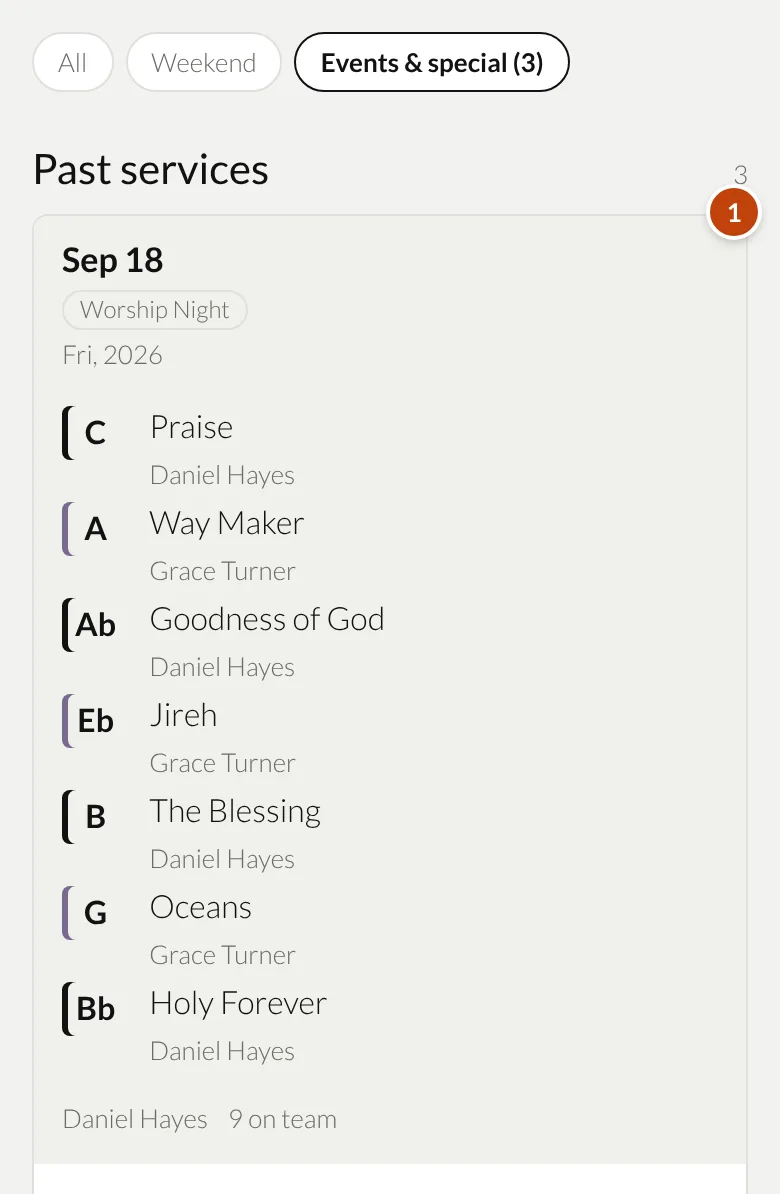
- A special service shows its name.
To delete a service, tap Delete service, then tap again to confirm.
9New songs
New songs need about 3 plays in their first 8 weeks to stick. This tab shows how each one is doing, plus songs you’re considering.
- Sticking: 3 or more plays. Ready for rotation.
- On track: still inside its first 8 weeks.
- Needs another play: 3+ weeks since it was last sung.
- Fading: past 8 weeks with fewer than 3 plays. Bring it back or let it go.
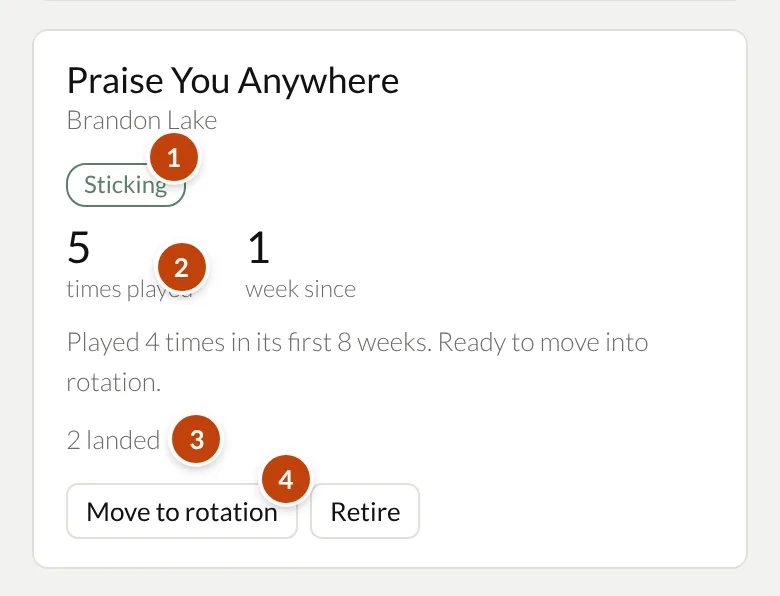
- Its health.
- Plays so far, and weeks since the last one.
- Your notes on how it’s landing.
- Move it into rotation.
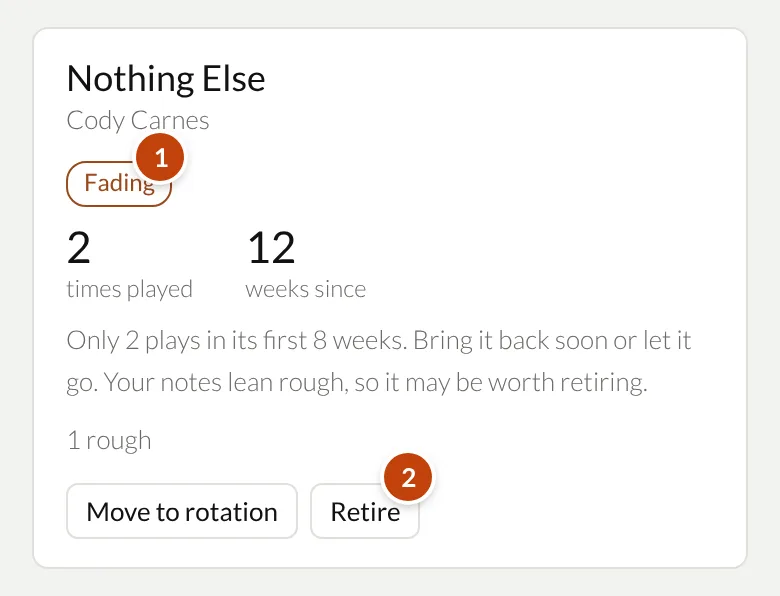
- Fading, with mostly rough notes.
- Retire it if it’s not working.
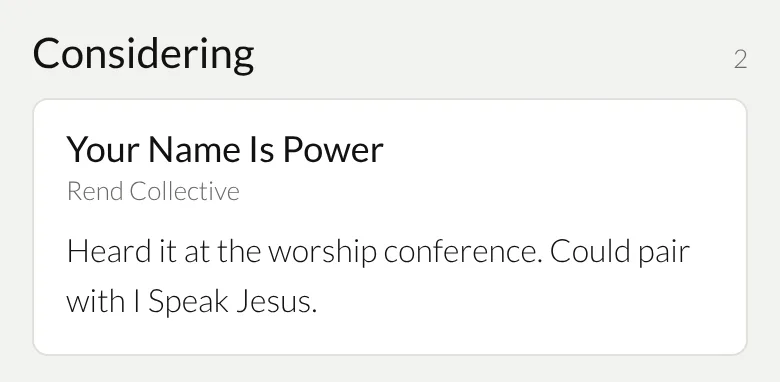
- Songs you might introduce, with your notes.
Add a song to consider from the top of this tab. When you put a Considering song in a service, it moves to Trying out.
10Team check
Pick a service to see how well your team knows each song: how many times each person has played or sung it. New means it’s their first time. Give them a heads-up.
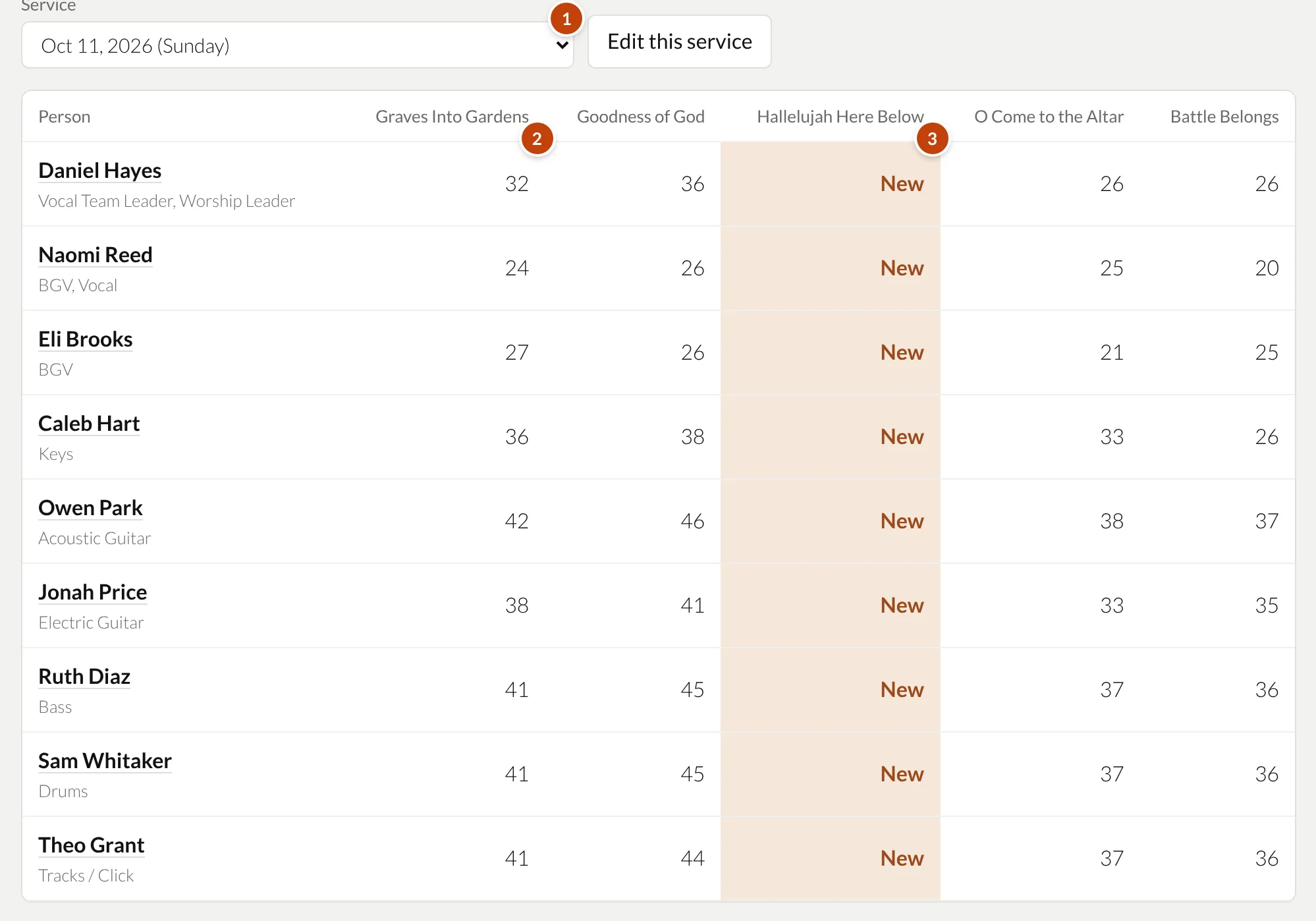
- Pick a service.
- Times they’ve done this song.
- First time for them.
Team care lists people serving a lot and regulars you haven’t seen in a while.
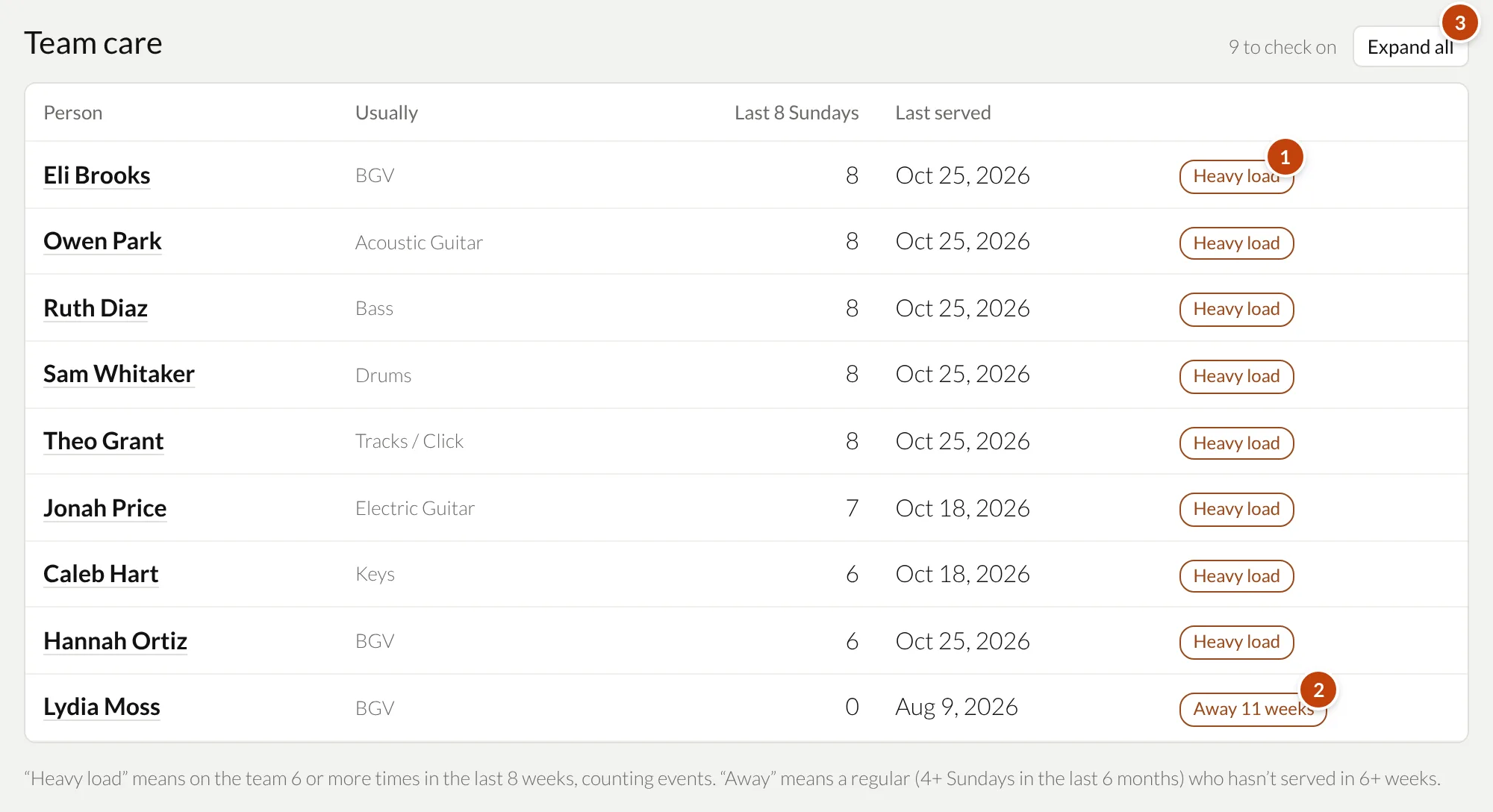
- Heavy load: on the team 6 or more times in the last 8 weeks, counting events. Same rule as Home.
- Not seen for 6+ weeks.
- Show everyone, not just those flagged.
Singers and Band are where you tag people after setup (male or female, worship leader, instruments). Tap Show to open them.
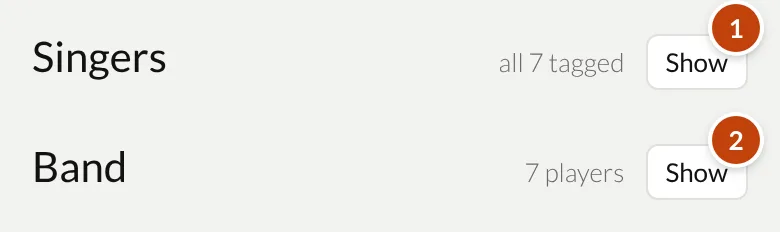
- Singers.
- Band.
Tap anyone’s name, anywhere in Setwise, to open their profile.
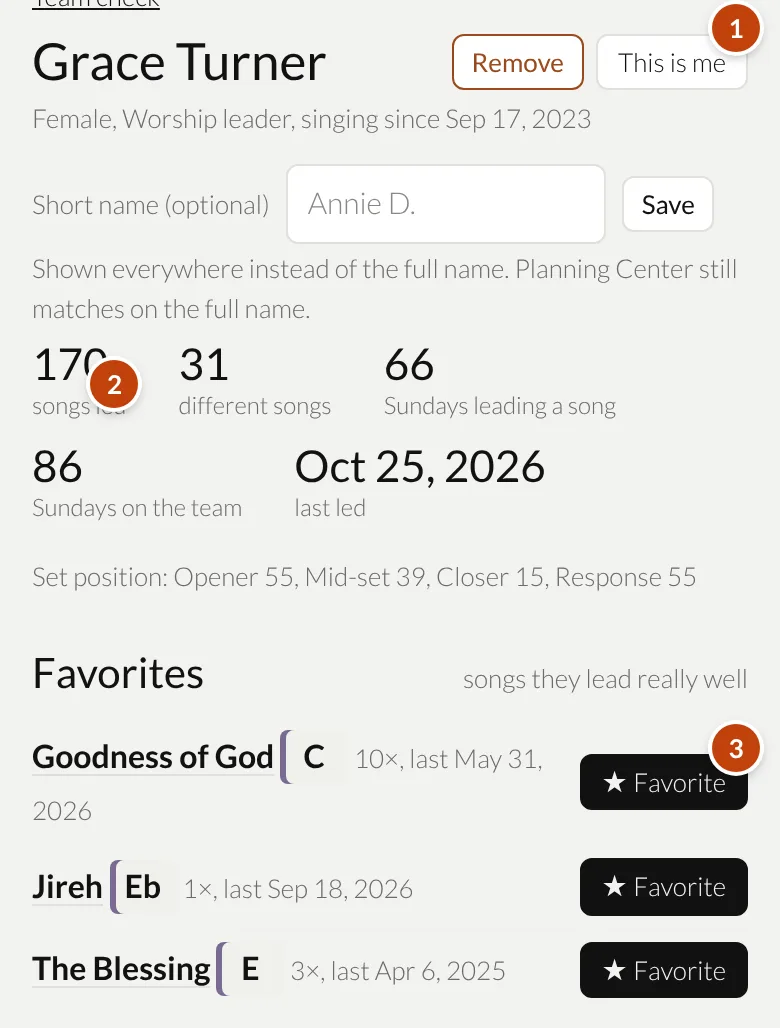
- Mark your own profile as you.
- What they’ve led and how often they serve.
- Favorites: songs they lead really well.
11Import & backup, and the CCLI report
Not on Planning Center, or have older history in a spreadsheet? Bring in a CSV file or paste rows (a date and a song title, plus key and leader if you have them).
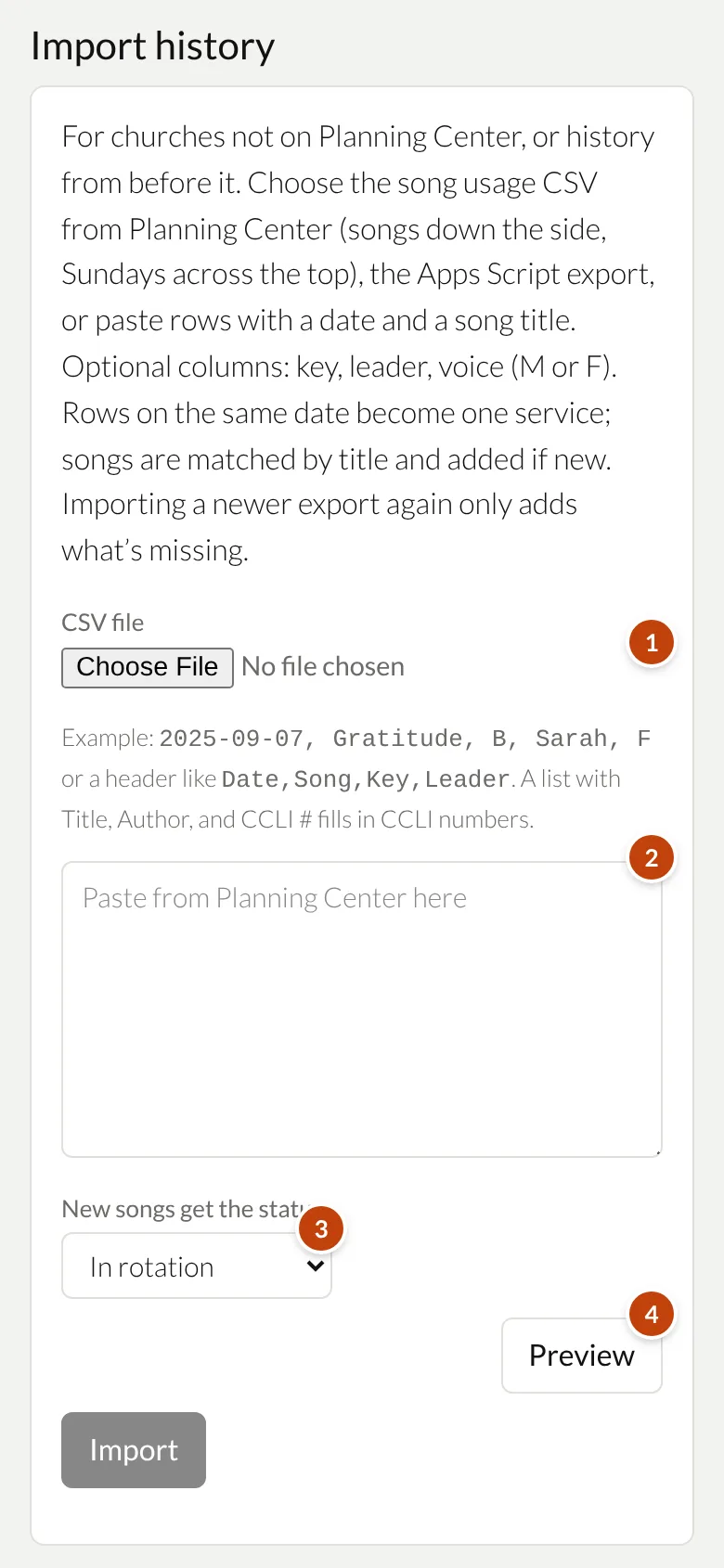
- Choose a CSV file…
- …or paste rows.
- The status new songs get.
- Preview before anything is saved.
The CCLI report lists every song used in a date range, with its CCLI number, ready for your CCLI reporting.
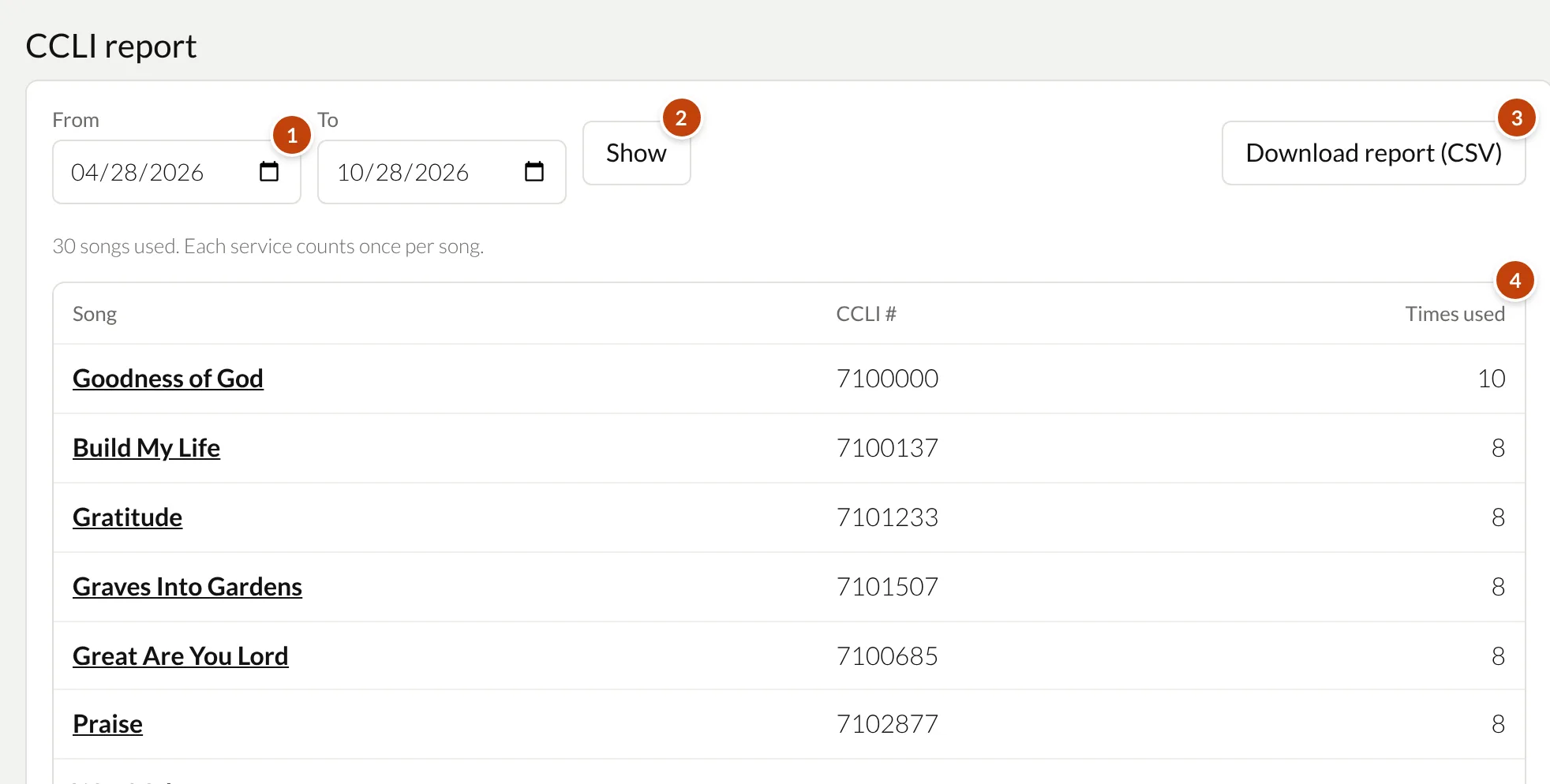
- Pick the dates.
- Show the report.
- Download it as a spreadsheet.
- CCLI numbers come from Planning Center.
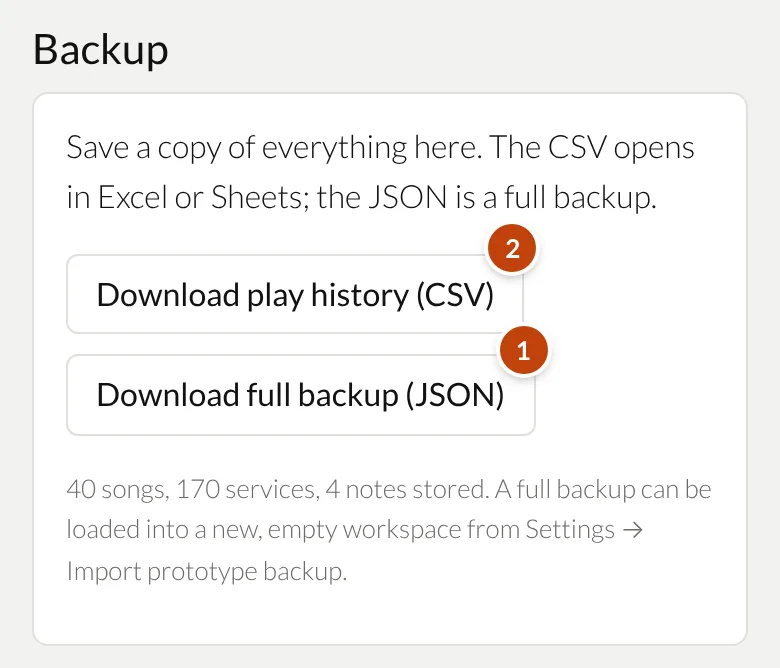
- Everything, in one file you can keep.
- Every song on every service, for Excel or Google Sheets.
12People, roles, and your workspace
Owners, editors, and viewers
Owners can do everything, including inviting people, connecting Planning Center, and deleting the workspace. Editors can plan sets, log services, and edit songs and people. Viewers can look around but can’t change anything. The owner invites people from Settings.
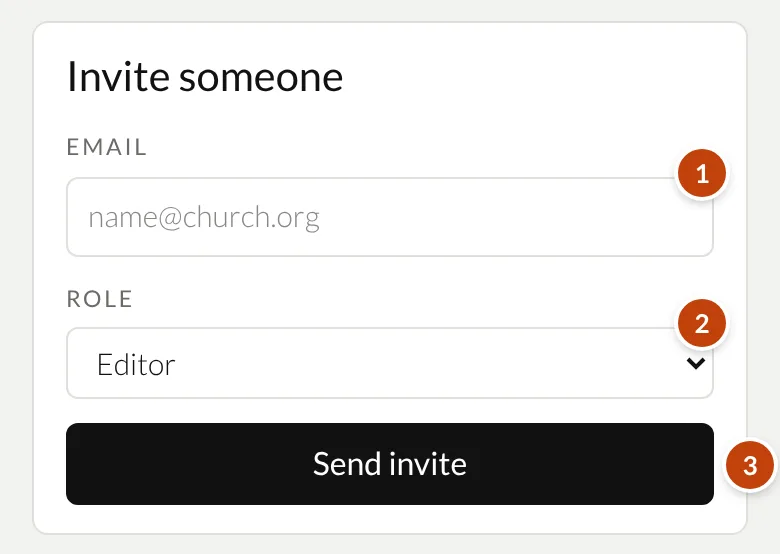
- Their email.
- Owner, editor, or viewer.
- Send the invite.
Short names
Two Sarahs on the team, or a long name that crowds a phone screen? Give anyone a short name on their profile, like “Sarah L.” Setwise shows it everywhere, and still matches Planning Center on the full name.
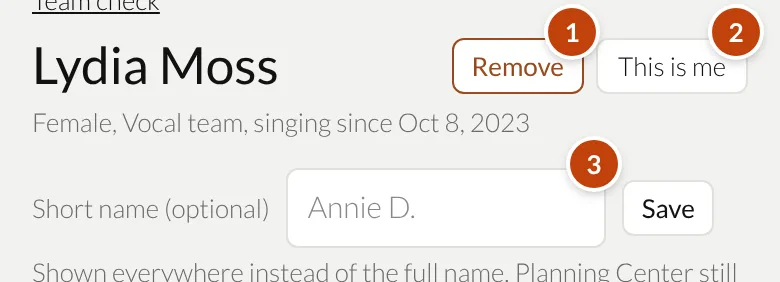
- Remove them from lists.
- Mark this profile as you.
- A short name to show instead of the full name.
Removing and restoring people
When someone leaves the team, tap Remove on their profile, then tap again to confirm. They drop out of lists, the planning assistant, and team check-ins, but their history stays.

- Tap again to remove.
Changed your mind? Removed people are listed under Singers or Band in Team check.
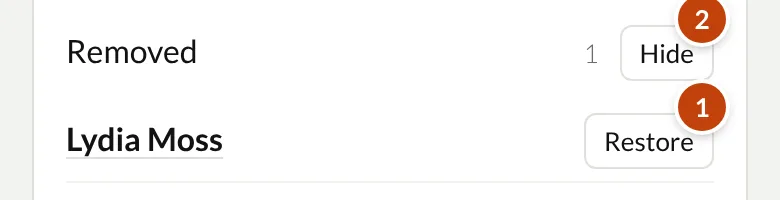
- Bring them back.
- Show or hide the list.
Deleting a workspace
Only the owner can delete a workspace. It removes the workspace and everything in it: songs, services, notes, people, and the Planning Center connection, for everyone. It can’t be undone, so download a full backup first (section 11).
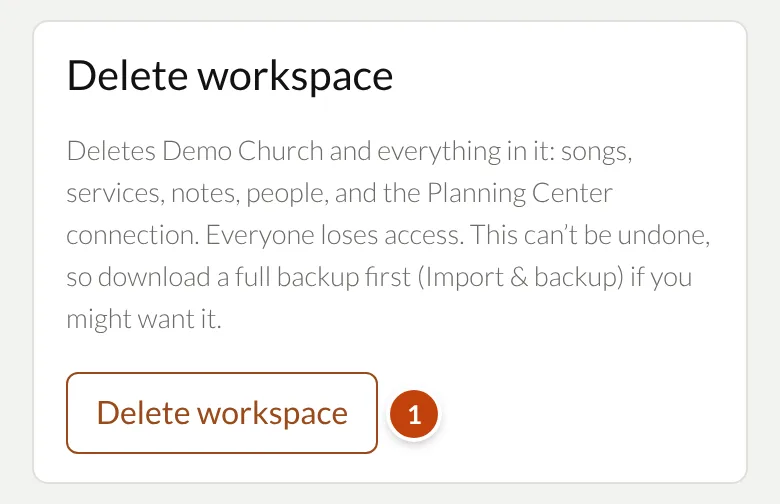
- Tap, then tap again to confirm.
13Tips and help
Name plan items “Song - Singer” in Planning Center
Setwise learns who sang each song from your Planning Center plans. Either assign a song leader on the plan item, or add the singer’s first name after a dash in the item title:
Way Maker - HannahAgnus Dei - Mike & Sarahfor a duetGoodness of God - Groupwhen everyone sings
Otherwise each song counts for the service’s worship leader.
Add Setwise to your home screen
- iPhone or iPad: open setwise.church in Safari, tap the Share button, then Add to Home Screen.
- Android: open setwise.church in Chrome, tap the ⋮ menu, then Add to Home screen (or Install app).
Need help?
This guide is linked from Settings → Help and from the sign-in page.
- Opens this guide.
Email support.setwise@gmail.com with questions, problems, or ideas. The Support page answers common questions about Planning Center and your data.